
Tengai POS for Windows
Run your till from a PC, laptop or POS terminal — register, stock, reports and ZIMRA receipts on a bigger screen. It’s in beta: download it, try it in your shop, and tell us what to improve.
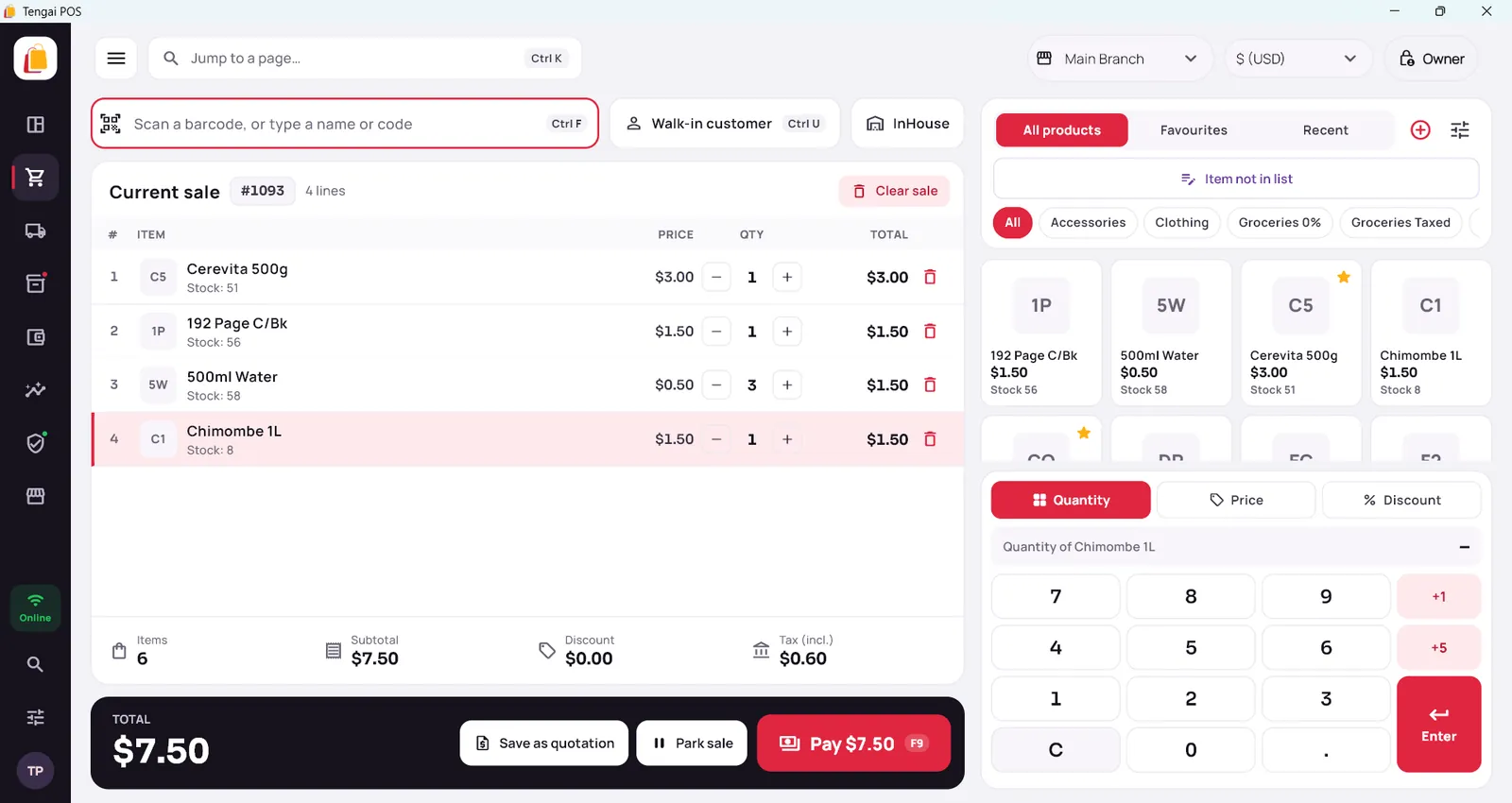
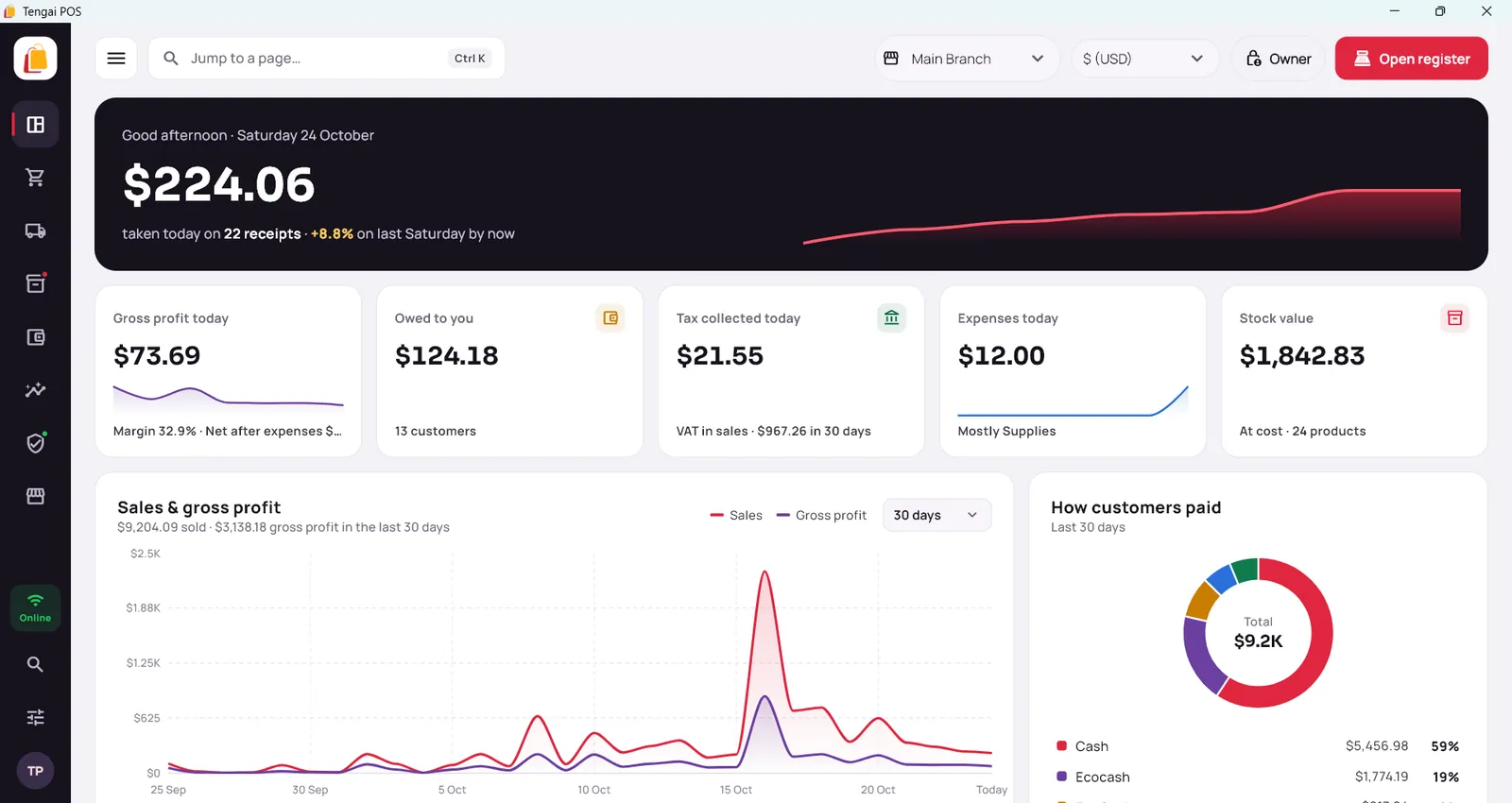
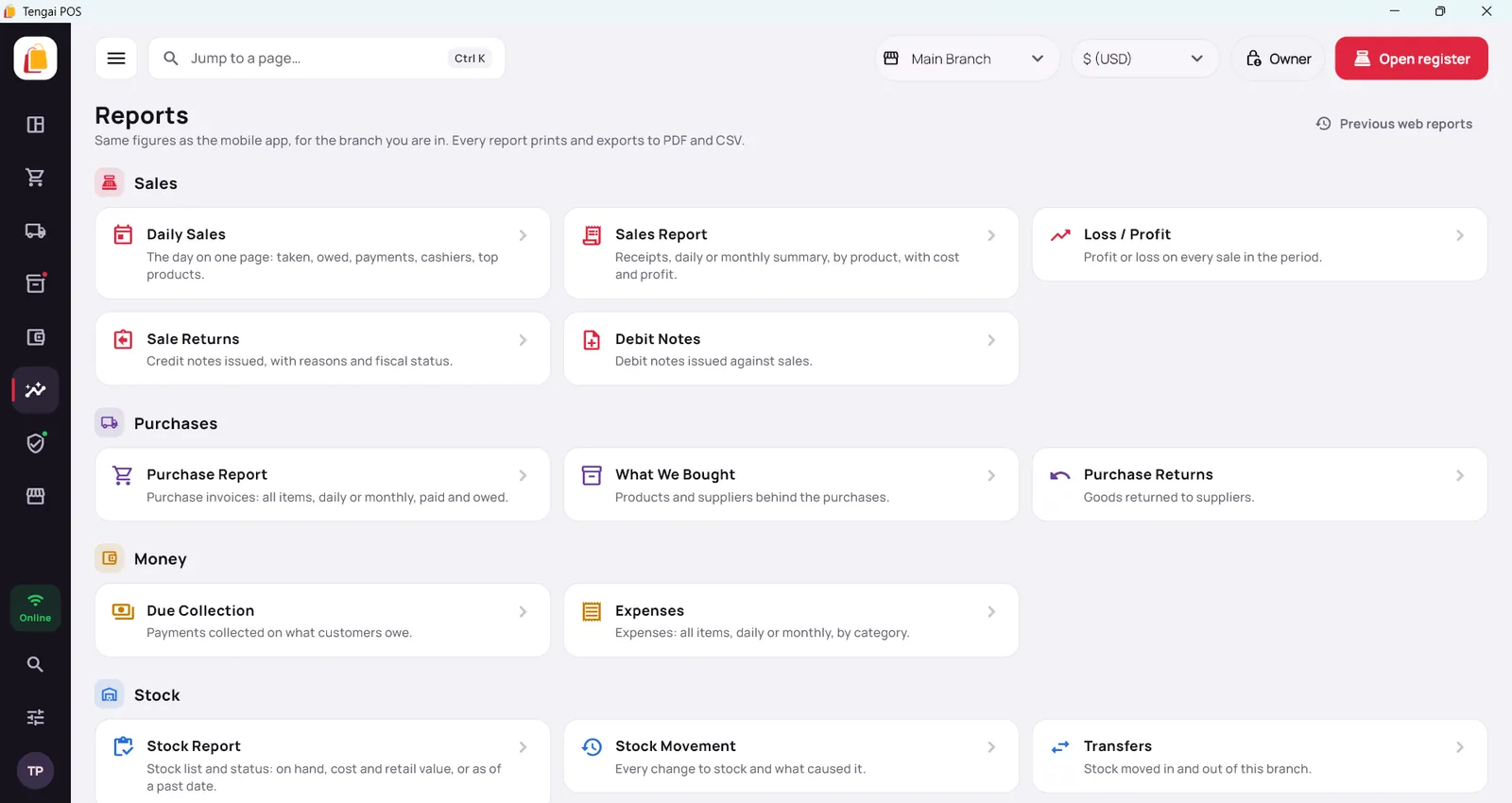
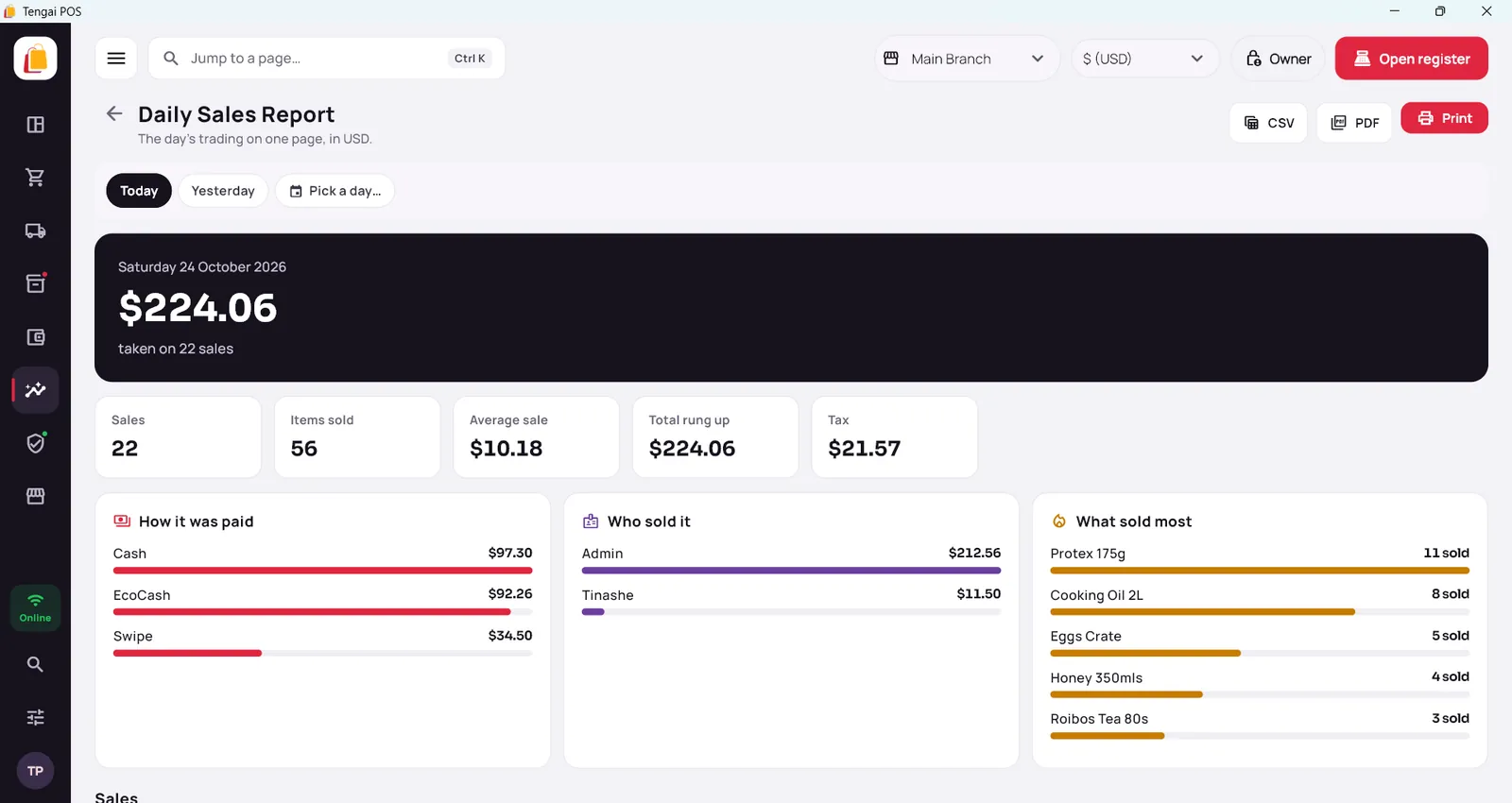
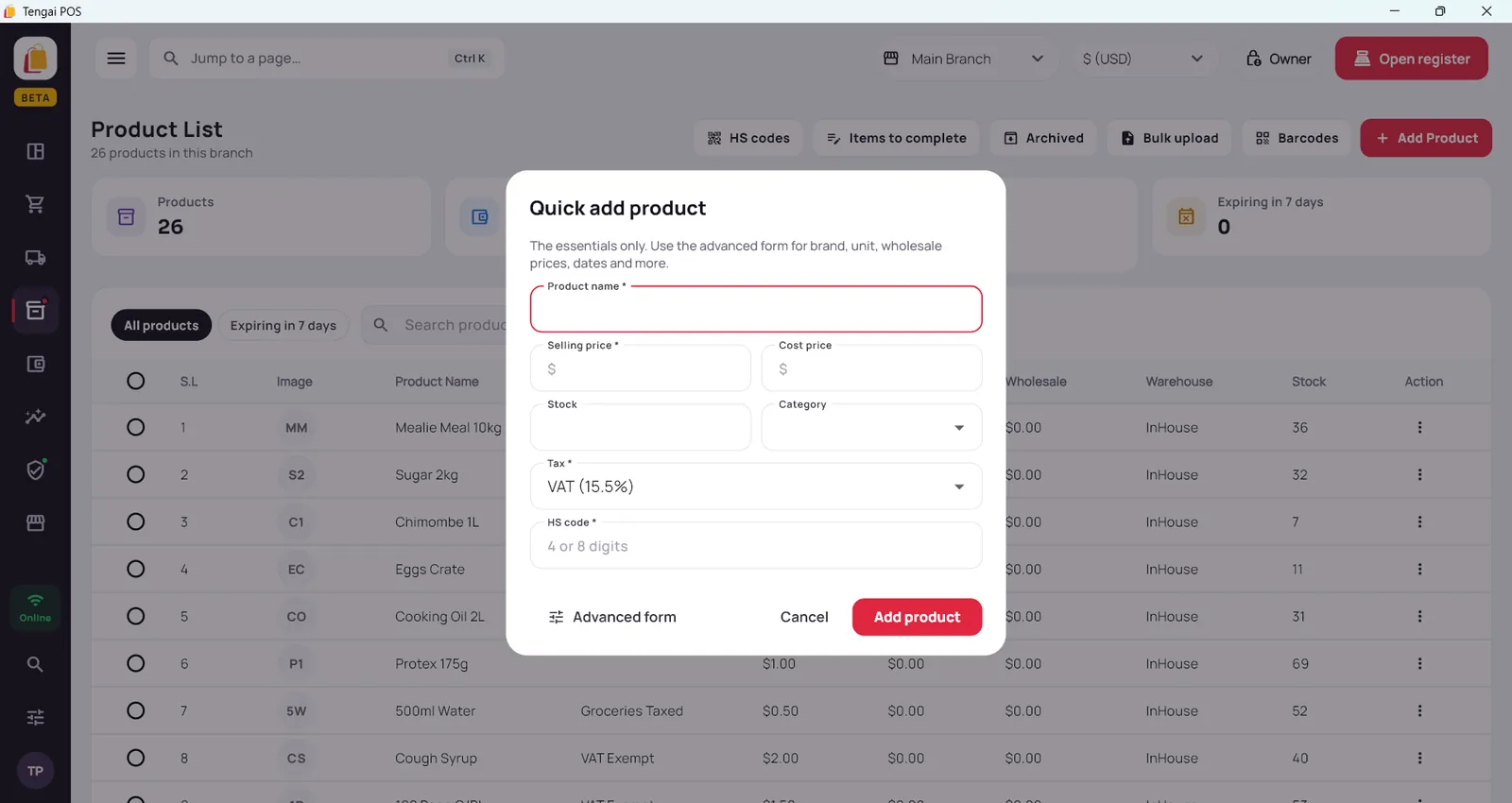
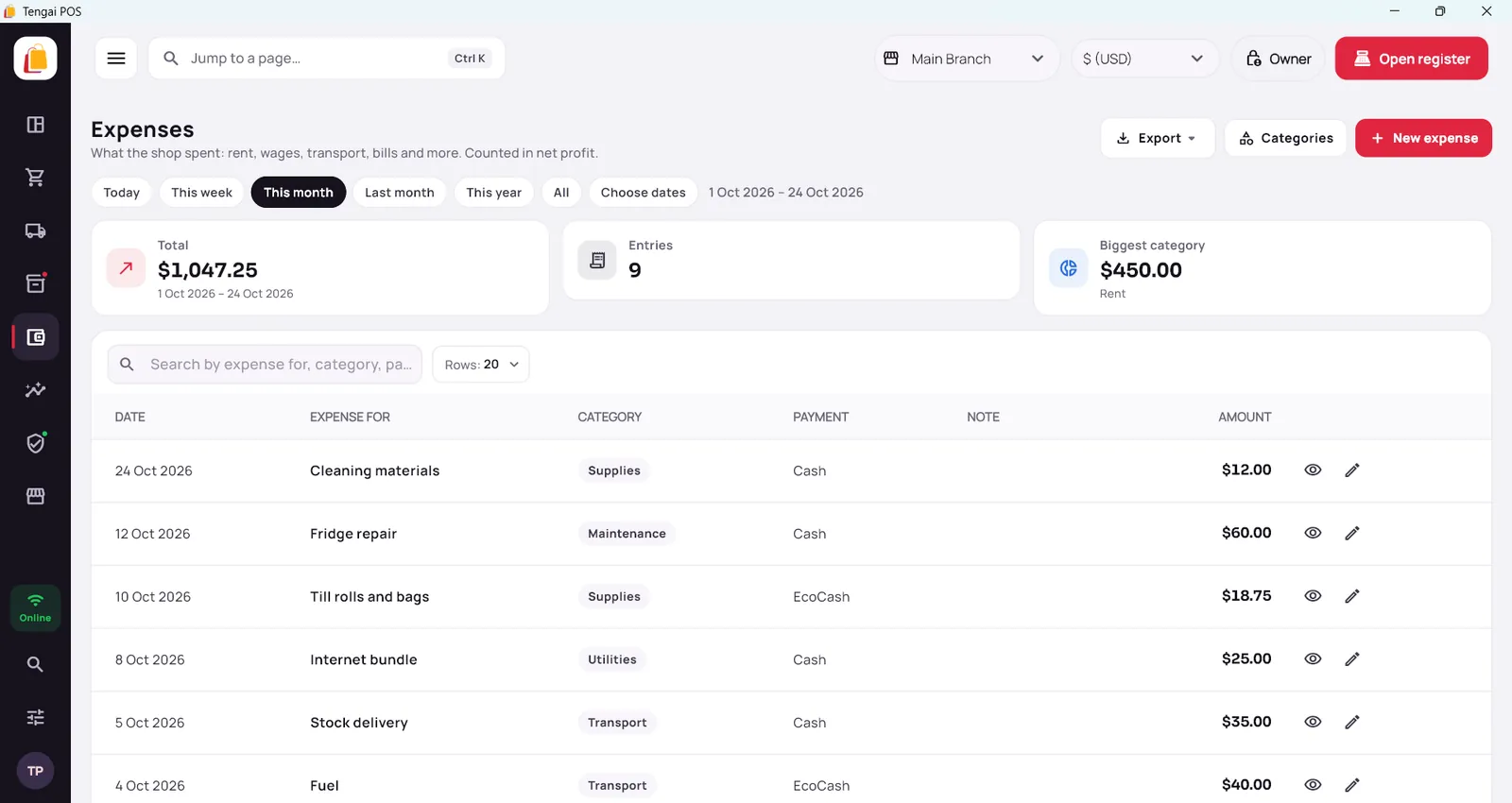
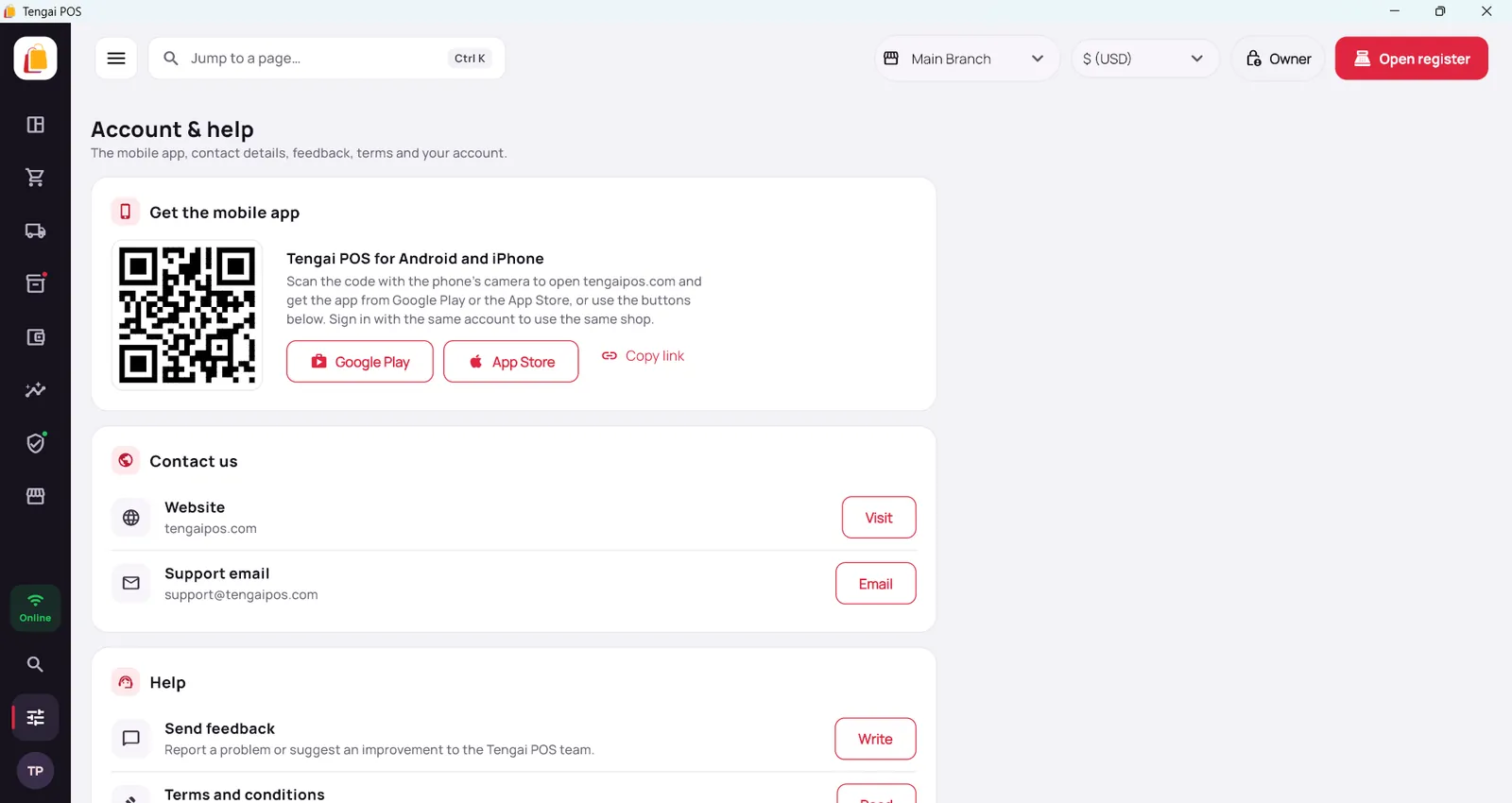
The Tengai POS you know, on a bigger screen
Sign in with your existing account to use the same shop. Reports show the same figures as the mobile app.
Built for the counter
A big-screen register with quick keys: scan or search, set quantity, price or discount, park a sale or save it as a quotation, then pay.
Keeps selling offline
Sales still work without internet. You only need to be online to sign in and to send receipts to ZIMRA.
ZIMRA fiscal receipts
Receipts are sent to ZIMRA when you are online. Add HS codes to your products as you go.
Reports that match your phone
Daily sales, profit and loss, stock and expenses. Every report prints and exports to PDF and CSV.
Receipts, invoices and reports
Print to USB or network thermal printers (58 mm or 80 mm), or any normal printer for A4 invoices and reports.
Scanners and touchscreens
Works with any USB barcode scanner that types like a keyboard. Touchscreens are supported, but we haven’t tested every device yet.
Will it run on your computer?
Most modern Windows PCs and POS terminals will. Here is what you need.
| Minimum | Recommended | |
|---|---|---|
| Windows | Windows 10, 64-bit (the installer won’t run on older versions) | Windows 11, 64-bit |
| Processor | Any 64-bit Intel or AMD | Dual-core or better |
| Memory (RAM) | 4 GB | 8 GB |
| Disk space | About 200 MB free | 1 GB free or more |
| Screen | 1280 × 720 | 1920 × 1080 |
| Internet | Needed to sign in and to send receipts to ZIMRA. Sales still work offline. | Stable broadband or mobile data |
| Installing | A Windows admin account, or an admin’s approval when Windows asks | Same |
Up and running in four steps
It takes a few minutes.
Download
Use the Download for Windows (Beta) button at the top of this page.
Run the installer
Open the file and follow the prompts. Windows may ask for an administrator’s approval — that’s normal. If Windows shows “Windows protected your PC” because this beta isn’t widely downloaded yet, choose More info and then Run anyway.
Sign in
Use your Tengai POS account (internet needed to sign in) to open the same shop you use on your phone.
Sell and tell us
Make a few sales, print a receipt and run a report — then send us your feedback.
Help us build it right
Real shops find real problems. Tell us what works, what doesn’t and what’s missing.
- In the app, open Account & help in the left menu.
- Under Help, choose Send feedback and write to the team.
Prefer email? Send it to support@tengaipos.com with your Windows version, what you were doing and what happened. A screenshot helps.
Email feedbackQuestions about the Windows app
Ready to try Tengai POS on Windows?
Download the beta, run a few sales and tell us what you think.